
The Short Answer Is No — and Rockstar Has Said So
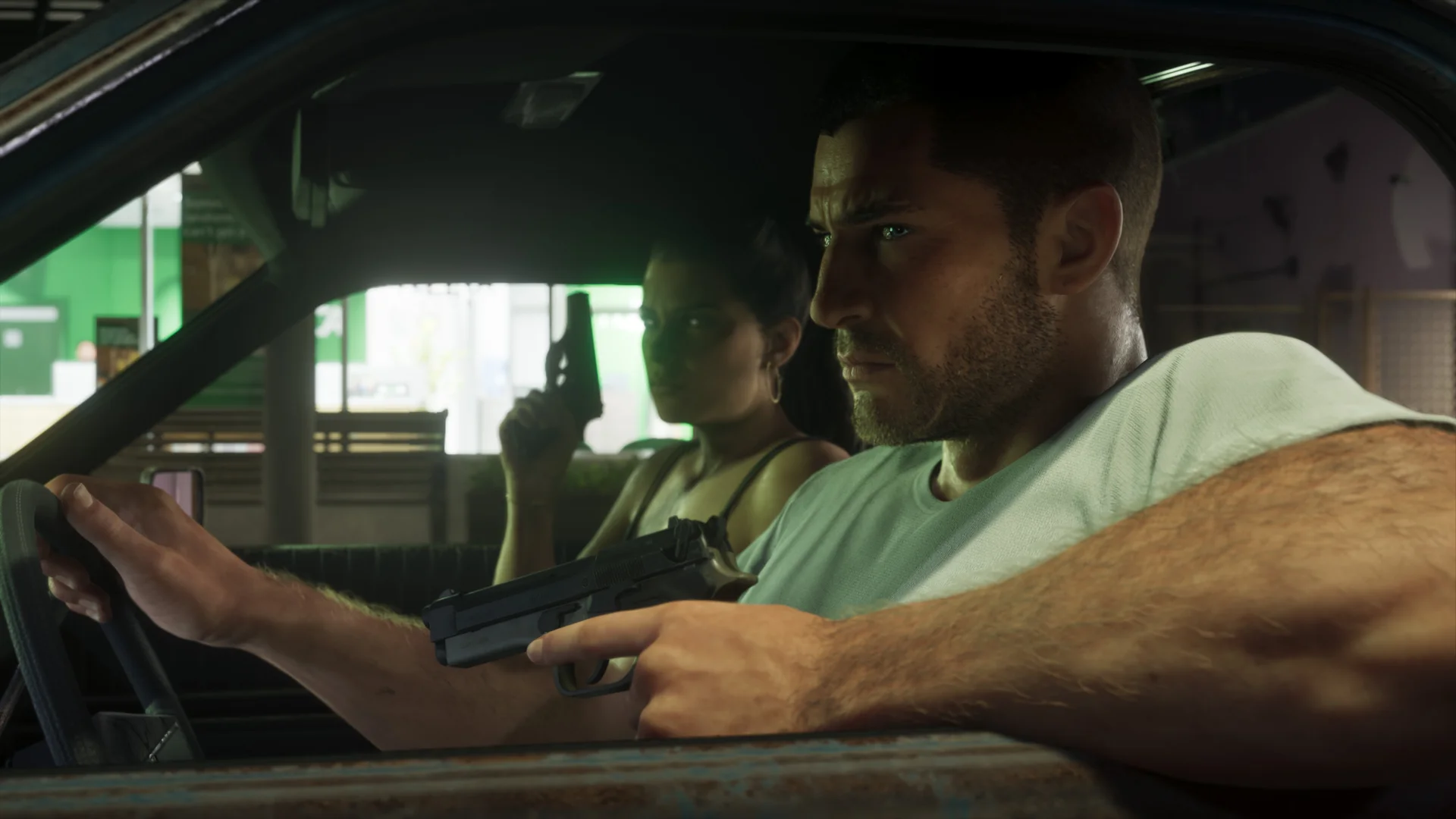
No, you cannot turn off the dark vignette in GTA 6. There is no vignette setting anywhere in the game’s menus, on PS5 or on Xbox Series X|S, and Rockstar has confirmed that is deliberate.
Asked about the darkened edges by Wccftech during the review period, Michael Kane, Rockstar’s Vice President of Dynamic Art, called the vignette “an artistic choice” and said: “We currently do not support any toggle.” He also said Rockstar had fixed a case where the effect was stronger than intended in certain circumstances, without naming a build or version.
So the shaded band at the top of your screen is the game working as designed. What you can do is separate it from the other screen-edge effects the game does let you control, and calibrate your picture so the band stops swallowing detail. Both are covered below.
Key Takeaways
- There is no vignette toggle in GTA 6 at launch, and no menu option carries the vignette name.
- Rockstar told Wccftech the effect is an intentional artistic choice, in the words of its VP of Dynamic Art.
- Rockstar also said it fixed a case where the vignette was stronger than intended, but named no version for the fix.
- The Display menu’s three intensity sliders control different edge effects — health, hits and threat warnings — not this band.
- Players ruled out the easy explanations: the band stays with hats and sunglasses removed, on foot and in cars.
- Calibrating in the right order — TV, then console HDR, then in-game brightness — is the mitigation that actually helps.
- Photo Mode does have a vignette control for your screenshots; gameplay does not.
Part 1 — What You Are Seeing, and What It Is Not
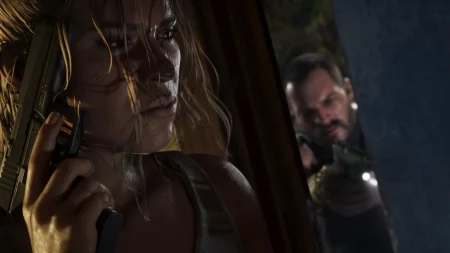
The complaint that filled launch-day threads is specific: a dark gradient band along the top of the screen, with softer darkening in the corners, present during gameplay and cutscenes alike. Players on both base PS5 and Xbox Series X reported hunting through the menus for an off switch that is not there, and launch coverage called it the most common settings complaint of the first day.
It is not your character’s outfit. Players in those threads tested the obvious theories and ruled them out: the shading stays with sunglasses and hats removed, and it appears on foot as well as behind the wheel.
It is also not damage feedback. GTA 6 draws several temporary effects around the screen edges — when your health is low, when shots land near you, when police are closing in off-screen. Those come and go with the action. The vignette is constant, sitting over calm scenes and cutscenes exactly as it sits over gunfights, which is how you know it is a different thing.
Part 2 — What the Display Menu Actually Contains
Open the pause menu, choose Settings, and move to the Display tab. Documented launch menus list Brightness Calibration and Safe Zone first, then a Visual Effects group, and none of it mentions a vignette.
The Visual Effects group holds three sliders. Player Status Effects Intensity governs the screen effects tied to your character’s state, such as low health or low stamina. Hit Effects Intensity governs edge effects when you are hit, including blood spatter and bullets passing close. Awareness Effects Intensity governs the edge warnings for police and threats you cannot see yet.
Around them sit Motion Blur Strength, Dismemberment, Blood & Gore Intensity, a Flashbang choice between Bright and Dark, and Brightness Reduction, which lays a filter over the world to soften bright lights. Our best GTA 6 settings guide walks the full menu; the point here is narrower. Every one of those options does something real, and none of them is the constant band at the top of your screen.
Part 3 — The Sliders That Only Look Like a Fix
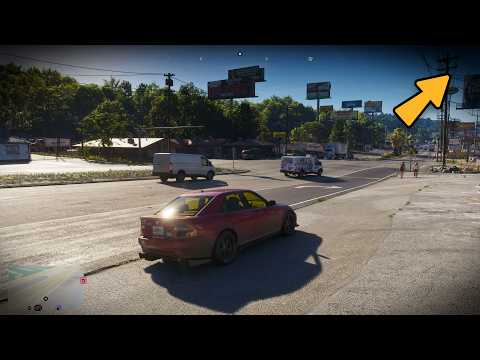
Because the three intensity sliders visibly change the edges of the screen, they are widely shared online as “the vignette setting.” They are not, and the difference is easy to test. Stand somewhere calm, at full health, with no police interest, and look at the top band. Then drop all three sliders and look again: the band will still be there, because it was never theirs to control.
What the sliders genuinely do is worth having. If the pulsing red edges at low health bother you more than the constant band does, Player Status Effects Intensity turned down will calm them. The trade-off is information: those effects are warnings, and awareness effects in particular tell you where off-screen police pressure is coming from.
Turn them down for comfort if you like, but do it knowing what you bought. You have softened the game’s warning lights, not removed its window tint. Guides claiming a slider removes the vignette are describing the lookalike effects, and following them leaves players wondering why the top of the screen is still dark.
Part 4 — Mitigations That Genuinely Help
You cannot remove the band, but you can stop it from eating detail, and the order matters. VGC’s launch advice for HDR runs in a strict sequence: set your TV first, then your console, then the game, because each step assumes the previous one is honest.
On the TV, use Game Mode and, if your set offers HGiG tone mapping, turn it on so the TV stops re-interpreting the game’s HDR. On PS5, run Adjust HDR under Settings, Screen and Video, Video Output. On Xbox, run Calibrate HDR for Games under Settings, General, TV & Display Options. Calibrate in the lighting you actually play in.
Only then touch the game’s own Brightness Calibration in the Display tab, following its test honestly: adjust until the symbol is barely visible. If dark scenes still crush after a correct calibration, nudging the in-game brightness one step above barely visible is a reasonable personal compromise — it lifts shadow detail at a small cost to true blacks. Our best TV settings for GTA 6 guide covers the television side in full.
Also check Brightness Reduction. It is meant to soften bright lights, and on a picture that already feels dim it is one more filter you do not need. Leaving it off will not touch the vignette, but it can make the overall image feel less heavy.
Part 5 — What Will Not Work, and the One Place a Toggle Exists
Safe Zone will not help: it sizes the HUD to your screen and does nothing to the shading beneath it. Motion Blur Strength will not help either, unless your complaint is actually smearing when the camera moves, which is a separate and genuinely fixable thing.
Restarting, reinstalling and rebuilding databases will not help, because nothing is broken. This is the rare launch-week article where the correct troubleshooting step is to stop troubleshooting.
The irony is that GTA 6 does contain a vignette control — in Photo Mode, where a vignette option sits among the camera effects for framing screenshots. Rockstar’s artists clearly see the effect as a photographic tool. They have simply chosen, for now, to keep it on during play. If player pressure changes that, it will arrive as a patch note, and our accessibility settings explainer is where menu additions of that kind are tracked on this site.
Frequently Asked Questions
Can you turn off the vignette in GTA 6?
No. There is no vignette toggle in the settings on PS5 or Xbox Series X|S at launch. Rockstar’s Vice President of Dynamic Art, Michael Kane, told Wccftech the effect is an artistic choice and said, “We currently do not support any toggle.”
Why is the top of my screen darker in GTA 6?
That band is the game’s built-in vignette: a deliberate gradient that darkens the top edge and corners of the picture in gameplay and cutscenes. It is not caused by your TV, your character’s clothing, or damage effects, and it stays constant whatever you are doing.
Is the vignette a bug?
The vignette itself is intentional, per Rockstar. However, Rockstar also told Wccftech it had fixed a case where the effect appeared stronger than intended in certain circumstances. If your band suddenly becomes much heavier in one repeatable situation, note the spot and your game version — that is worth a support report.
Does the Player Status Effects slider remove the vignette?
No. That slider controls the temporary edge effects tied to low health and stamina. Lowering it calms those warnings, and the same goes for the Hit and Awareness sliders beside it, but the constant top band remains. Any guide calling it the vignette setting is mixing up two different effects.
Is the dark band caused by sunglasses or hats?
No. Players tested this during launch week and the shading stays with sunglasses and hats removed, on foot and in vehicles. The sunglasses theory was a reasonable guess from pre-launch footage, but it does not explain the released game.
What can I do to make the vignette less noticeable?
Calibrate in order: TV Game Mode and HGiG first, then your console’s HDR calibration, then the game’s Brightness Calibration. A correct chain keeps shadow detail alive under the band. If scenes still crush, one extra step of in-game brightness is a fair trade, and check Brightness Reduction is off.
Does Safe Zone affect the vignette?
No. Safe Zone only adjusts how the HUD fits your screen. It does not move, shrink or lighten the vignette, which is part of the rendered picture rather than the interface.
Is there a vignette setting in Photo Mode?
Yes. Photo Mode includes a vignette among its camera effects, so you can strengthen or soften it in screenshots. That control applies to photos only and has no effect on the vignette during gameplay.
Will Rockstar add a toggle later?
Rockstar has not said. Kane’s wording — that a toggle is not currently supported — leaves the door open without promising anything, and Rockstar has announced no patch adding one. For now, plan around the effect rather than waiting on a menu option that may never come.
My whole picture is too dark, not just the edges. Is that the vignette?
Probably not. A uniformly dark or washed-out picture points at HDR calibration, not the vignette. Recalibrate the console HDR and the in-game brightness in the order described above. The vignette darkens edges; a calibration problem darkens everything.
In Short
The dark band is a deliberate part of GTA 6’s look, Rockstar has confirmed there is no switch for it, and the sliders that share its neighbourhood control different effects entirely. Calibrate your TV, console and game in that order, turn down the warning effects only if they are the thing actually bothering you, and save your reinstalls for problems that are actually broken.