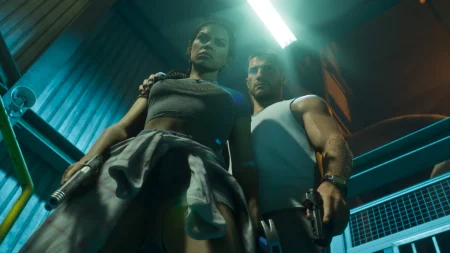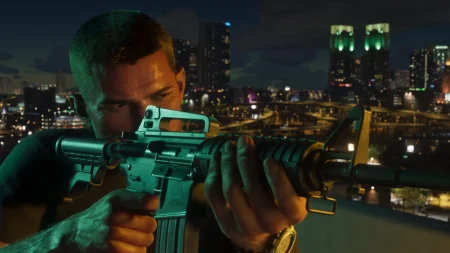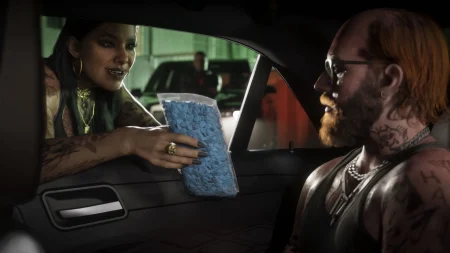

Set It Up Once, Before Launch Night
The best TV settings for GTA 6 are mostly console settings, and you can apply them today: Game Mode on at the TV, the console in an HDMI 2.1 port with its enhanced format enabled, VRR and ALLM on, motion smoothing off, and HDR calibrated with each console’s built-in tool.
None of this depends on the game itself: these are the display settings PlayStation and Xbox document for their consoles, so they apply to whatever modes GTA 6 ships with at its launch on Thursday 19 November 2026. One honesty note: Rockstar has not confirmed GTA 6’s frame-rate modes, and nothing below assumes a performance mode exists or that the game runs at 120 fps.
Key Takeaways
- Game Mode on at the TV; console in an HDMI 2.1 port with that port’s enhanced format switched on
- Use the cable that came with the console, or another certified Ultra High Speed HDMI cable
- PS5: Resolution Automatic, VRR Automatic, 120 Hz Output Automatic, ALLM Automatic, HDR On When Supported
- Xbox: check 4K TV details first, then Allow 4K, Allow HDR10, Allow variable refresh rate, Allow auto low-latency mode
- Motion smoothing off for gaming — it adds delay and fake frames
- Calibrate HDR last: Adjust HDR on PS5, Calibrate HDR for Games on Xbox
- Rockstar has NOT confirmed GTA 6’s frame-rate modes — no setting here invents one
Part 1 — Start at the TV: Game Mode, the Right Port, the Right Cable
Every console setting later depends on the TV end being right first. Switch the picture mode for your console’s input to Game Mode — a picture mode of its own on many sets, a game menu item on others. It switches off most of the TV’s picture processing: the single biggest responsiveness change available.
Next, the port. Full features — 4K at 120 Hz, VRR, ALLM — need an HDMI 2.1 port, and many TVs only offer it on one or two inputs. PlayStation’s 4K 120 Hz troubleshooting starts here: check the TV manual for the right port, and note HDMI 2.1 support may require changing a setting on the TV itself.
That setting is the per-port enhanced format, and it catches people out constantly. The naming varies by brand and model — examples include HDMI Ultra HD Deep Colour (LG), Input Signal Plus (Samsung) and Enhanced format (Sony). If it is off for your port, the console never sees the port’s full capability. Finish with the cable: use the one supplied with the console, or another certified Ultra High Speed HDMI cable, connected directly to the TV where you can — Sony flags receivers in the chain as a common cause of a 4K 120 Hz signal arriving as less. Still choosing a screen? Our guide to the best TV or monitor for GTA 6 covers what to buy.
Official Rockstar Games image, via rockstargames.com
Part 2 — Input Lag, and Why Motion Smoothing Has to Go
Input lag is the delay between pressing a button and seeing the result on screen. TVs create most of it themselves: every layer of picture processing holds each frame back while it works on it. Outside Game Mode, a modern TV can add tens of milliseconds — felt as heavy steering and overshooting aim. Game Mode strips that processing out, which is why it matters more than any console toggle.
Motion smoothing deserves its own warning because it often stays on in default settings. It invents extra frames between the real ones — sold as TruMotion, Motionflow or Auto Motion Plus, varying by brand — adding lag and smearing fast movement. Turn it off.
Part 3 — PS5 Video Output Settings
On PS5, everything lives in one place: Settings, then Screen and Video, then Video Output. At the top, Video Output Information tells you what the connected TV reports it can do — check there first if anything below is greyed out.
Set Resolution to Automatic — the PS5 picks the highest resolution the TV supports. On a 1440p screen, choose 1440p and run Test 1440p Output, which checks SDR and HDR at 60 Hz and 120 Hz, plus VRR.
Set VRR to Automatic, with Apply to Unsupported Games on beneath it. VRR lets the TV adjust its refresh rate in real time to match the game, smoothing frame-rate dips and removing tearing; PlayStation notes results vary by TV. Set 120 Hz Output and ALLM to Automatic too — the first enables 120 Hz output where TV and game support it, forcing nothing to render faster; the second tells an ALLM-capable TV to drop into low-latency mode while you play (VRR output triggers that switch even if ALLM is Off).
Set HDR to On When Supported. Always On converts even non-HDR games into HDR output, which can wash them out; On When Supported gives HDR games the real thing and leaves the rest in SDR. PS5 Pro owners get extra options here, covered in our look at how GTA 6 runs on PS5 Pro.
Official Rockstar Games image, via rockstargames.com
Part 4 — Xbox Series X|S Display Settings
On Xbox, open Settings, then General, then TV & display options — and before changing anything, open 4K TV details. It lists, with green ticks, everything your TV told the console it supports: 4K at 60 Hz and 120 Hz, HDR10, Dolby Vision, VRR and more. Whatever is missing there is missing everywhere; no checkbox can invent it.
If a feature your TV has shows a red mark there, work through the Part 1 chain — right port, enhanced format on, Ultra High Speed cable — then check again. Set Resolution to 4K UHD and Refresh rate to 120 Hz if offered; on a Series S, which renders lower than the Series X (see how GTA 6 will run on Xbox Series S), pick the highest combination offered.
In Video modes, tick Allow 4K, Allow HDR10, Allow variable refresh rate and Allow auto low-latency mode, plus Allow Dolby Vision if your TV supports it. The VRR and ALLM switches do the same jobs as their PlayStation equivalents.
Under Advanced, Video fidelity & overscan, leave Color space on Standard (Recommended) for a TV — a repair tool, not an upgrade.
Part 5 — Calibrate HDR Last, on Both Consoles
HDR calibration only means something once the port, cable and picture mode are final, because those decide the signal being measured. Do it in the lighting you play in, TV in Game Mode and — if offered — its HGiG tone-mapping option selected first, so the TV is not tone mapping over the console’s numbers.
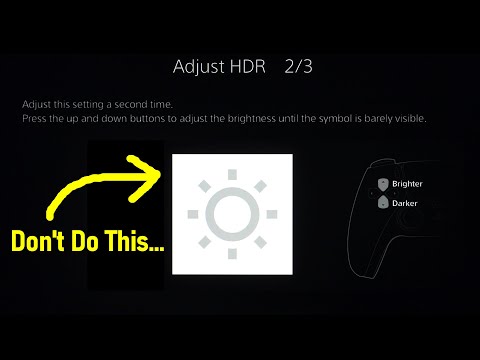
On PS5, run Adjust HDR from the Video Output menu. Three screens ask you to move a slider until a symbol is barely visible — follow that literally: not invisible, not obvious. Those screens teach the console your TV’s real brightness ceiling and floor; rushing them is why HDR games look blown out or dim.
On Xbox, run Calibrate HDR for Games from TV & display options. Its screens cover minimum, maximum and full-frame maximum luminance: lower the first until the checkerboard is barely visible, then raise the next two until the pattern just disappears — and stop there. One step further is already wrong.
The video below is the most careful walkthrough of the PS5 tool available: HDTVTest measures what each Adjust HDR screen actually does, and why the barely-visible instruction matters.
Part 6 — What These Settings Cannot Do
These steps prepare your screen and console; they do not change the game. Rockstar has not announced GTA 6’s graphics modes or frame-rate targets — our explainer on GTA 6’s graphics and ray tracing keeps what is confirmed separate from what is guessed.
Ship with a single mode or a choice — either way, the console end is already configured. Settings cannot close a hardware gap either; our comparison of GTA 6 on PS5 vs Xbox Series X covers what is known about each version.

Official Rockstar Games image, via rockstargames.com
Frequently Asked Questions
What are the best TV settings for GTA 6?
Game Mode on, motion smoothing off, the console in an HDMI 2.1 port with its enhanced format enabled, VRR and ALLM on, and HDR calibrated with the console’s own tool — Adjust HDR on PS5, Calibrate HDR for Games on Xbox.
Does GTA 6 run at 120 fps on PS5 or Xbox?
Rockstar has not confirmed GTA 6’s frame-rate modes, so nobody can honestly say. Enabling 120 Hz output simply readies your setup for any mode a game offers.
Do I need an HDMI 2.1 TV to play GTA 6?
No. The game plays on any screen the consoles support. HDMI 2.1 is needed for the full feature set — 4K at 120 Hz and VRR — not for playing at all.
Should motion smoothing be on or off for gaming?
Off. It invents frames the console never rendered, adds input lag and smears fast movement. It is designed for film and broadcast TV, not games.
What does VRR actually do?
It lets the TV change its refresh rate in real time to match the game’s frame rate, removing screen tearing and softening the judder when a busy scene dips below its target.
How do I calibrate HDR on PS5?
Settings, Screen and Video, Video Output, then Adjust HDR. On each of the three screens, move the slider until the symbol is barely visible — with the TV in Game Mode, in the lighting you play in.
How do I calibrate HDR on Xbox Series X|S?
Settings, General, TV & display options, then Calibrate HDR for Games. Lower the first pattern until it is barely visible, then raise the two brightness patterns until they just disappear, stopping immediately.
Why is 120 Hz missing on my console?
Work through the chain: a port that supports it, that port’s enhanced format on, an Ultra High Speed cable, a direct connection to the TV. Xbox’s 4K TV details and the PS5’s Video Output Information show what the TV is reporting.
Does Game Mode make the picture look worse?
It can look slightly different — it disables processing that artificially sharpens and smooths. In exchange you get far lower input lag: the right trade for games.
Do these settings work on a gaming monitor too?
Mostly, yes. Monitors rarely have motion smoothing to disable, but the console steps are identical — and PS5’s Test 1440p Output is built for 1440p screens.
Ten Minutes Now, a Better Launch Night
The whole routine takes about ten minutes per console, once.
Do it this week, and when GTA 6 unlocks at midnight on 19 November, your first drive through Vice City looks and responds as your screen was built to deliver.