
Downloading Official GTA 6 Artwork in Brief
You download official GTA 6 screenshots and artwork from the Media & Artwork area on Rockstar’s official GTA 6 site, at rockstargames.com/VI. Rockstar describes that area as official videos, screenshots and more to download and share.
That is the confirmed route, and it is deliberately described in general terms here. Rockstar’s site layout can change, and exact button labels and click sequences can differ by device, so this article does not invent a step-by-step click list that may not match the page you see. Instead, it tells you where to go, what the area is called, what it contains in Rockstar’s own description, and how to tell official artwork from lookalikes.
All artwork obtained this way should be credited to Rockstar Games. That credit is not just politeness. It is how readers know the image is official, not a fan edit, a leaked still, or a screenshot from an unofficial video.
Key Takeaways
- The official source is the Media & Artwork area on rockstargames.com/VI.
- Rockstar describes it as official videos, screenshots and more to download and share.
- No exact button labels or click sequences are claimed here, because those can change and were not verified step by step.
- Credit all artwork obtained this way to Rockstar Games.
- Do not use Google Images, leaked stills, or fan art as a substitute for official downloads.
1. Start at Rockstar’s Own VI Site, Not a Search Result
The first step is also the most important safety step: go to rockstargames.com/VI itself, rather than trusting a search result, a social media link, or a third-party download site. Search results can lead to fan galleries, re-uploads, and edited images that look official but are not.
Rockstar’s VI site is the home for GTA 6’s official pages, including character profiles, city material, and the Media & Artwork area. Starting there means every image you find is in Rockstar’s own context, with Rockstar’s own descriptions around it.
That starting point also protects you from the most common download mistake: grabbing a trailer screenshot from a video site and treating it as an official still. A video frame can be cropped, compressed, colour-graded, or watermarked by the uploader, and it carries none of Rockstar’s download permissions. An official download, by contrast, comes from Rockstar’s own media area, in the form Rockstar chose to share.
If a link claims to be Rockstar but takes you to a different domain, a file host, or a page asking for payment for free artwork, stop. Official artwork in this area is described by Rockstar as available to download and share, not as a paid product, and a payment demand is a warning sign.
2. Find the Media & Artwork Area
Once you are on rockstargames.com/VI, look for the Media & Artwork area. That is the name Rockstar gives to this part of the site in the description used here, and it is the area to use for official downloads.
This article does not give exact button labels, menu positions, or a numbered click sequence, because those details were not verified step by step for this draft, and site layouts change. A guide that insists on a specific button that no longer exists will confuse more readers than it helps.
Instead, use the area name as your anchor. On the VI site, find the part of the site devoted to media and artwork, rather than the shop, the editions pages, or the character profiles. That area is where Rockstar groups its downloadable videos, screenshots, and more.
If you cannot find the area on a first look, check the site’s main navigation and its media-related links, and try a different device or browser view. Mobile and desktop layouts can hide or move media links, and a missing link on one view does not mean the area has been removed.
3. What Rockstar Says the Area Contains
Rockstar describes the Media & Artwork area as official videos, screenshots and more to download and share. That description covers three things worth separating.
First, “official” means the material comes from Rockstar itself. It is not fan art, not a leaked still, and not a third-party capture. That official status is the reason to use this area in the first place.
Second, “videos, screenshots and more” means the area is broader than still images alone. It includes video material as well as screenshots, plus whatever else Rockstar groups under “more” at the time you look. This article does not list every file type or resolution, because Rockstar’s own area is the source for what is currently offered, and that offer can change.
Third, “to download and share” means Rockstar presents this material as shareable. That is different from merch, which is a shop category of clothing, collectibles and more to buy, and different from game content, which you play rather than download as an image. For the merch distinction, see the guide to what GTA 6 merch is.
If a file you want is not in the Media & Artwork area, do not assume Rockstar has hidden it elsewhere or that a third-party copy is equivalent. Check the area again later, or accept that Rockstar has not shared that particular image as a download.
4. Choosing Screenshots Versus Artwork
Screenshots and artwork serve different purposes, and Rockstar’s area groups them together, so it helps to know which you need before you download a large set.
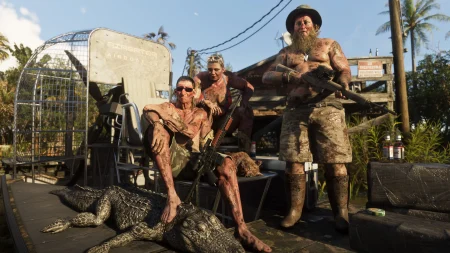
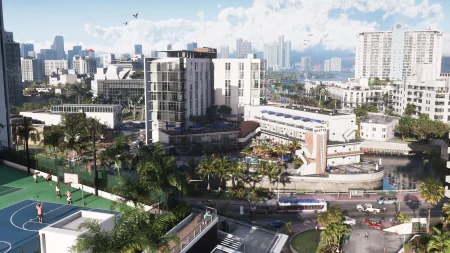
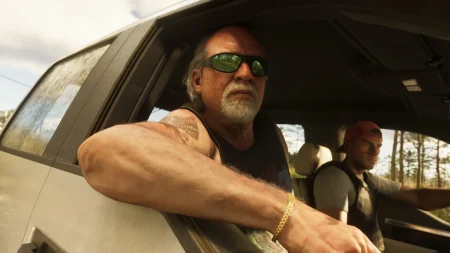
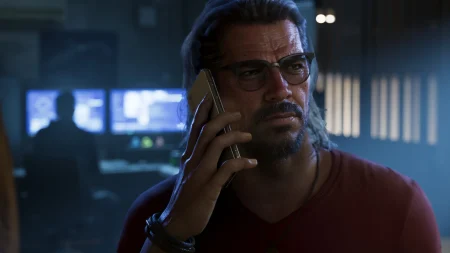
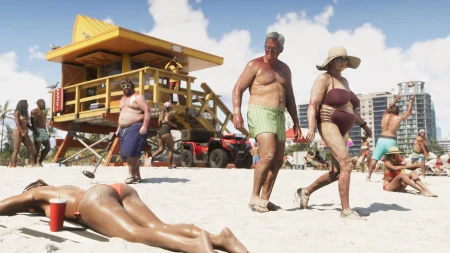
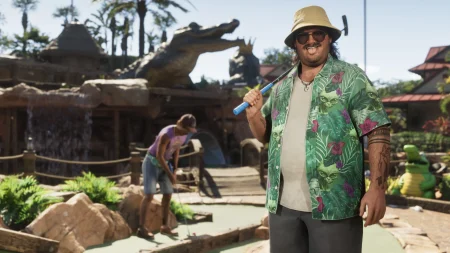
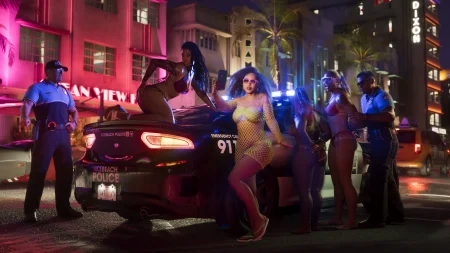
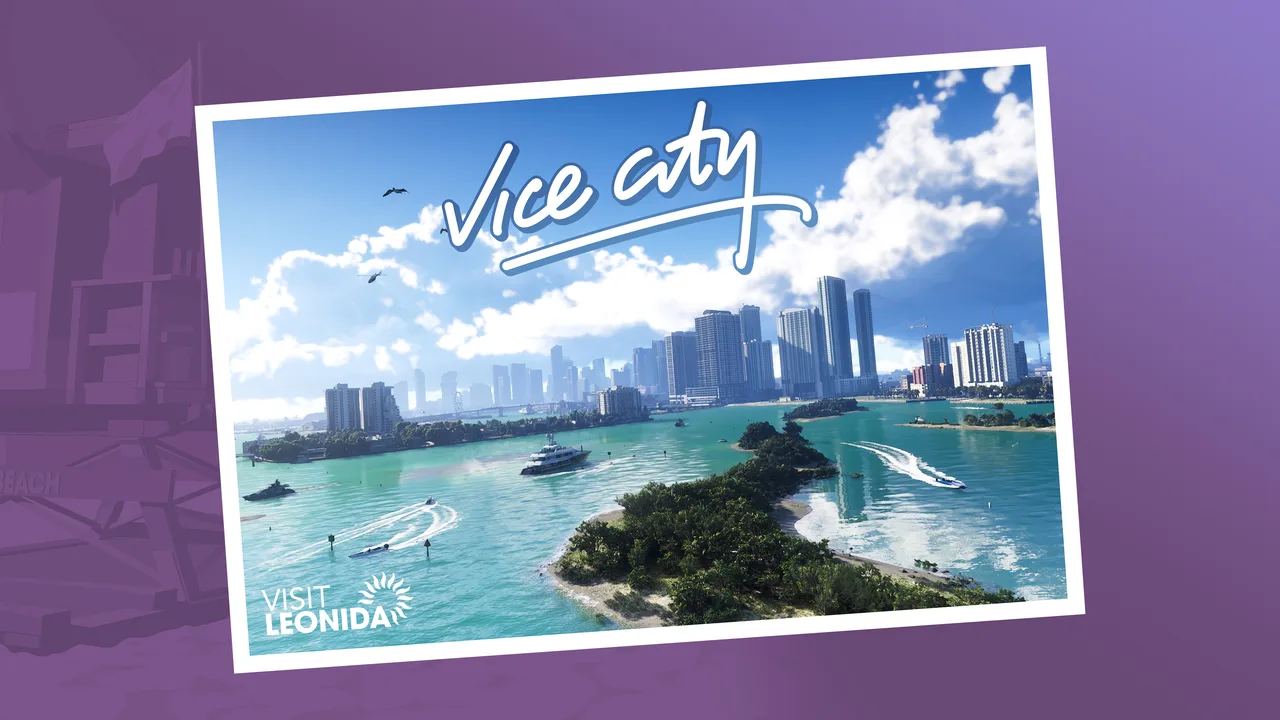
Screenshots are in-game or in-engine images, showing places, characters, and moments as they appear in the game world. They are the best choice when you want to show what Vice City, Leonida, or a character actually looks like in play, rather than in a stylised poster.
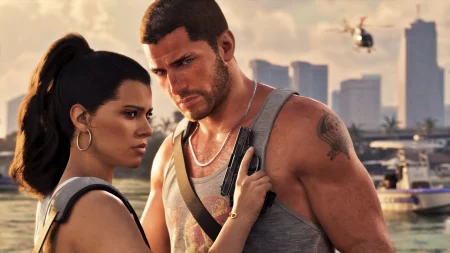
Artwork is the more designed, promotional side: key art, character portraits, and composed images made to present the game. Artwork is the better choice for a header, a thumbnail, or a piece that needs to read clearly at a small size, where a busy screenshot might turn to noise.
Both kinds, when taken from Rockstar’s Media & Artwork area, carry the same credit: Rockstar Games. Both kinds, when taken from anywhere else, carry the same risk: you may be using a fan edit, a leak, or a recompressed copy without knowing it.
For readers who want the confirmed story and city context behind the images, the guides to what GTA 6 is and what Vice City is like in GTA 6 give that framing without adding unofficial pictures.
5. Downloading and Saving Without Losing Quality
Once you have found an official file in the Media & Artwork area, save it in a way that keeps it usable. Download the file Rockstar offers, rather than screenshotting the preview, because a screenshot of a preview adds compression, cropping, and screen artefacts that the original download does not have.
Keep the original filename or a clear note of where the file came from, at least until you have finished using it. That note is what lets you re-download the same file later, or prove its source if someone questions whether it is official. Renaming every file to a generic name on download is a small habit that causes large confusion later.
Also keep the credit with the file. If you publish the image, caption it or credit it to Rockstar Games alongside the image, not buried in a separate page readers will never find. A credit that travels with the image is what keeps official artwork identifiable after it is shared onward.
Finally, do not upscale, recolour, or heavily crop an official image and then present the result as if it were still Rockstar’s original. Edits are a separate creation. If you edit, say so, and keep the unedited original for comparison.
6. What Not to Download, Even If It Looks Official
Three sources should not be used as substitutes for Rockstar’s Media & Artwork area, however convincing they look. The first is Google Images and other image search results. Search results mix official downloads, fan art, leaks, and recompressed copies, with no reliable label separating them.
The second is leaked stills. A leaked image, by definition, is material Rockstar did not choose to share through its media area. Using it as if it were official misleads readers about what Rockstar has confirmed, and it can also spread unfinished or out-of-context material.
The third is fan art, however skilled. Fan art can be beautiful, and it can be honestly shared as fan art, but it is not official GTA 6 artwork, and it should never be captioned or credited as Rockstar’s work. The same applies to AI-generated images in a GTA 6 style: they are not Rockstar screenshots, and they should not be presented as such.
If you are writing, posting, or designing with GTA 6 images, the test is simple. Can you trace the file back to rockstargames.com/VI, and specifically to its Media & Artwork area? If not, do not call it official.
7. Sharing Official Artwork Responsibly
Rockstar describes its Media & Artwork material as available to download and share, which gives sharers a clear starting permission, but not an unlimited one. Sharing with a Rockstar Games credit, in the form Rockstar provided, is the responsible baseline.
Do not strip the credit, add a false credit, or imply Rockstar endorsed your article, video, or product because you used its artwork. Using shared artwork is not the same as being sponsored, partnered, or approved by Rockstar, and implying otherwise is misleading.
Do not use official artwork to sell something Rockstar has not approved, or to imply an unofficial product is official merch. Artwork and merch are separate categories, and an official image on an unofficial listing does not make that listing official.
And do not re-upload official artwork to a file host or a download site and present your re-upload as the official source. The official source remains Rockstar’s VI site. Your copy, however faithful, is a copy, and readers who want the original should be sent to Rockstar, not to your mirror.
Frequently Asked Questions
How do I download official GTA 6 screenshots?
Go to rockstargames.com/VI, find the Media & Artwork area, and download from there. Rockstar describes that area as official videos, screenshots and more to download and share.
What is the Media & Artwork area on Rockstar’s GTA 6 site?
It is the part of rockstargames.com/VI where Rockstar groups official downloadable media, described as official videos, screenshots and more to download and share.
Do I need to pay to download official GTA 6 artwork?
No payment is described for this area in the material checked. Rockstar presents the material as available to download and share, which is different from merch, which is sold. If a third-party site demands payment for the same artwork, treat that as a warning sign.
Should I credit Rockstar Games when I use official artwork?
Yes. Credit all artwork obtained from Rockstar’s Media & Artwork area to Rockstar Games, and keep that credit with the image when you share it.
Can I use Google Images to find official GTA 6 screenshots?
No, not reliably. Google Images mixes official downloads, fan art, leaks, and recompressed copies, with no reliable label separating them. Use Rockstar’s own Media & Artwork area instead.
Are leaked GTA 6 stills official artwork?
No. Leaked stills are material Rockstar did not choose to share through its media area, and they should not be presented as official downloads.
Can I use fan art as GTA 6 artwork?
You can share fan art as fan art, with its own creator credited, but you must not present it as official Rockstar artwork or screenshots.
What is the difference between GTA 6 screenshots and artwork?
Screenshots show the game world as it appears in play, while artwork is designed promotional imagery such as key art and character portraits. Both are available through Rockstar’s Media & Artwork area, and both should be credited to Rockstar Games.
Why does this guide not give exact button labels?
Because exact labels and click sequences can change with site layout and device, and they were not verified step by step for this draft. The reliable anchor is the area name, Media & Artwork, on rockstargames.com/VI.
Can I edit official GTA 6 artwork before sharing it?
You can create an edited version, but do not present the edited result as Rockstar’s original. Say it is edited, keep the unedited original, and keep the Rockstar Games credit for the source material.
Conclusion
Official GTA 6 screenshots and artwork live in one place worth trusting: the Media & Artwork area on rockstargames.com/VI, described by Rockstar as official videos, screenshots and more to download and share.
Go there first, download the file Rockstar offers rather than screenshotting a preview, and credit Rockstar Games when you share it. Skip Google Images, leaked stills, and fan art when what you need is an official image.
That short routine keeps your images genuine, your credit honest, and your readers able to tell Rockstar’s work from everything that only looks like it.